How to Open STL Files on iPhone (2026 Guide)

To open an STL file on iPhone, install a free viewer such as Extrude (listed as STL Viewer on the App Store), then tap the file in Files, Mail, WhatsApp or Safari, press Share and choose STL Viewer. The model opens in 3D, offline, with its size in millimetres. iPhone has no useful built-in STL viewer: Apple documents its 3D Quick Look for USDZ and Reality files only. Nothing needs converting, and the file stays on your phone.
Someone sends you a bracket on WhatsApp and asks, “will this fit?” You are not at your desk, the printer is at home, and the file is an .stl. Tapping it gives you a file name and a size in kilobytes, and no model.
I build the Extrude app, so I see the other side of this too: about 2,500 models opened on phones every week this October, and a steady stream of emails from people who could not get one to open. Below is what works, what does not, and why.
Can an iPhone open STL files on its own?
No. Apple’s 3D preview on iPhone, called Quick Look, is documented for USDZ and Reality files, the formats Apple uses for AR. STL is not on that list. Even when the Files app shows a thumbnail, it cannot tell you how big the part is, let you measure it, or say anything about printing it.
So you need an app. It can be free, it needs no account, and it never has to upload your file.
How do you open an STL file on iPhone from the Files app?
This works for any STL already on your phone or in iCloud Drive.
- Install Extrude from the App Store. It appears as STL Viewer with a dark icon and a blue cube.
- Open the Files app and find your STL. Safari downloads land in iCloud Drive → Downloads by default (Apple Support).
- Tap the file. If iOS shows a plain file page, tap the Share button.
- Choose STL Viewer from the row of apps. If you do not see it, scroll to the end and tap More.
The model opens in 3D. Drag to rotate, pinch to zoom, and use two fingers to move it. You can also do it the other way around: open the app, tap Open file, and pick the STL from the Files browser.
How to open STL files from Mail, WhatsApp and Safari
The same way every time: open the file, tap Share, choose STL Viewer. Every iPhone app hands files to other apps through that Share sheet, so only the first step changes.
Mail. Touch and hold the attachment, tap Share, then STL Viewer. If you want to keep the file, choose Save to Files first.
WhatsApp and Telegram. Open the document in the chat, tap the Share icon in the corner, then STL Viewer. Chat apps keep their own copy, so saving to Files is worth it for anything you will need again.
Safari. Tap the download link on Printables, Thingiverse or any other site. When the download finishes, tap the Downloads arrow next to the address bar, tap the file, then Share → STL Viewer.
AirDrop from a Mac. Send the file, and when the iPhone asks which app to open it with, pick STL Viewer.
| Where the STL is | What to tap | Kept on the phone? |
|---|---|---|
| Files app | File → Share → STL Viewer | Yes |
| Mail attachment | Touch and hold → Share → STL Viewer | Only if you Save to Files |
| WhatsApp or Telegram | Document → Share → STL Viewer | Inside the chat app |
| Safari download | Downloads → file → Share → STL Viewer | Yes, in iCloud Drive → Downloads |
| ZIP from a model site | ZIP → Share → STL Viewer → pick a model | Yes |
| A laptop, no app | getextrude.com/stl-viewer | Not uploaded at all |
Opening an STL from inside a ZIP
Yes. Share the ZIP straight to STL Viewer; if the archive holds several models, the app lists them and you pick one. Many model sites offer a “download all files” button that gives you exactly this kind of ZIP: the STL plus pictures, a readme, and sometimes several versions of the part.
What can you check after you open an STL on iPhone?
Size, distances, wall thickness and a print estimate, all on the phone. Those are the questions people actually have about a part, more than its shape.
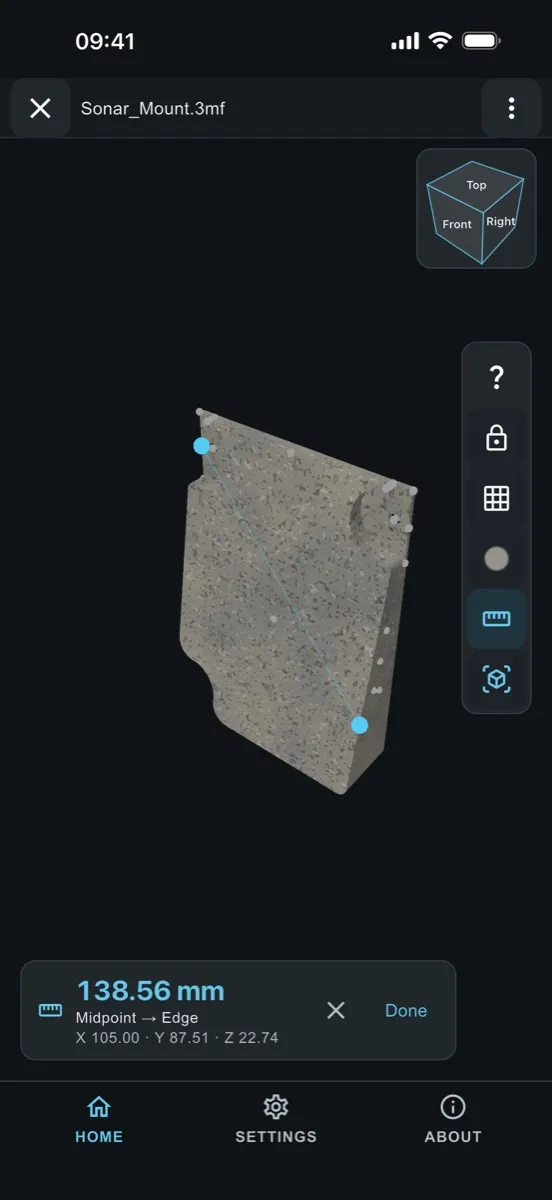
- Overall size in millimetres, so you know at a glance whether it fits the printer bed or the gap on the shelf.
- Distance between two points. Tap twice on the model; points snap to corners, edges and face centres.
- Section view. Slide a cut through the part to see wall thickness and hidden cavities.
- Print estimate. Volume, weight, filament length, print time and cost, from your own printer and material settings.
- AR at real size, to put the part on your desk and see it next to the thing it has to fit.
All free. A small banner ad pays for the work; no subscription, no trial.
Which 3D file formats do people open most on phones?
STL is 87% of the 15,130 models opened in the app, and iPhone users open 3MF files more than twice as often as Android users. We count which formats get opened, anonymously (no IDs, no file names), and these are the totals for September and October 2026.
About one STL in four is ASCII, the text version of the format. ASCII files are several times larger than binary ones for the same shape, which is why a 40 MB STL from an older CAD tool can feel slow on a phone. If a viewer refuses one, the file is usually fine; the viewer just only reads binary. Extrude reads both.
The 3MF numbers differ by platform. On iPhone, 13.4% of opened models were 3MF, against 5.4% on Android. 3MF is what Bambu Studio, Orca Slicer and PrusaSlicer save projects as, and it carries the unit and colours that STL lacks. If you get a .3mf instead of an .stl, the same steps above work; the 3MF viewer page explains what is inside one.
Three STL myths on iPhone, answered
“I have to convert it to USDZ first.” You do not. Apple’s AR Quick Look needs USDZ, but that only matters if you want Safari or Messages to show the model by themselves. A viewer app opens the STL as it is.
“The STL says 20, so it’s 20 cm.” An STL has no unit at all; it describes only the surface as a list of triangles. The convention is millimetres, which is what slicers and viewers assume. A part that looks absurdly small was probably exported in inches.
“It’s grey, so the colours are missing.” Standard STL has no colours or textures to lose. If colour matters, ask for a 3MF, OBJ or GLB.
Open an STL in the browser instead
On a laptop, or on someone else’s phone, the web STL viewer opens the same files inside the browser, without an upload. It shows the size, volume and triangle count. It is also handy for G-code when you want to see the toolpath before sending a print. Why we keep files on your device in both places is explained on the mission page.
Which way should you open an STL on iPhone?
For a file that is already on your phone, share it to STL Viewer from Files, Mail or WhatsApp; it takes three taps and works offline. On a laptop, use the web viewer. Either way, check the size in millimetres before you print or reply “it fits”.
If a file will not open, send it to support@getextrude.com and say what happens when you tap it. I read every message, and several of the features above started as one.
How this guide was made: the steps follow the current App Store version of Extrude and the iPhone Share sheet; the format numbers come from the app’s anonymous counters. When iOS or the app changes a step, this page gets updated and the updated date appears under the title.
Questions
Can an iPhone open STL files without an app?
Not in a useful way. Apple documents iPhone's 3D and AR preview (Quick Look) for USDZ and Reality files, not STL. To rotate an STL, read its size in millimetres or measure it, you need a viewer app such as Extrude (listed as STL Viewer on the App Store), which is free and works offline.
Where do downloaded STL files go on iPhone?
Files you download in Safari are saved to the Downloads folder in the Files app, under iCloud Drive by default. Mail and WhatsApp attachments stay inside those apps until you share them or save them to Files.
Do I need to convert STL to USDZ to view it on iPhone?
No. A viewer app opens the STL directly. Converting to USDZ is only needed if you want Apple's own AR Quick Look in Safari or Messages to show the model.
What unit is an STL file in?
An STL file has no unit field. Almost every slicer and CAD program treats the numbers as millimetres, so viewers show the size in mm. If a part looks 25.4 times too small, it was exported in inches.
Is it safe to open client or private STL files on my iPhone?
Yes, if the viewer works locally. Extrude reads the file on the phone and never uploads, renames or moves it, and it needs no account. The web viewer on getextrude.com also opens files inside the browser without uploading them.
Open 3D files on your phone
Extrude is free and keeps files on your device. Listed as “STL Viewer”.



Written by
Enes VuralFounder and developer
Enes builds Extrude, the phone app listed as STL Viewer on the App Store and Google Play. He writes the file parsers and the native 3D viewers (Filament on Android, SceneKit on iOS), and ships features people ask for by email. He writes about 3D file formats, viewing and checking models on a phone, and preparing parts for printing.